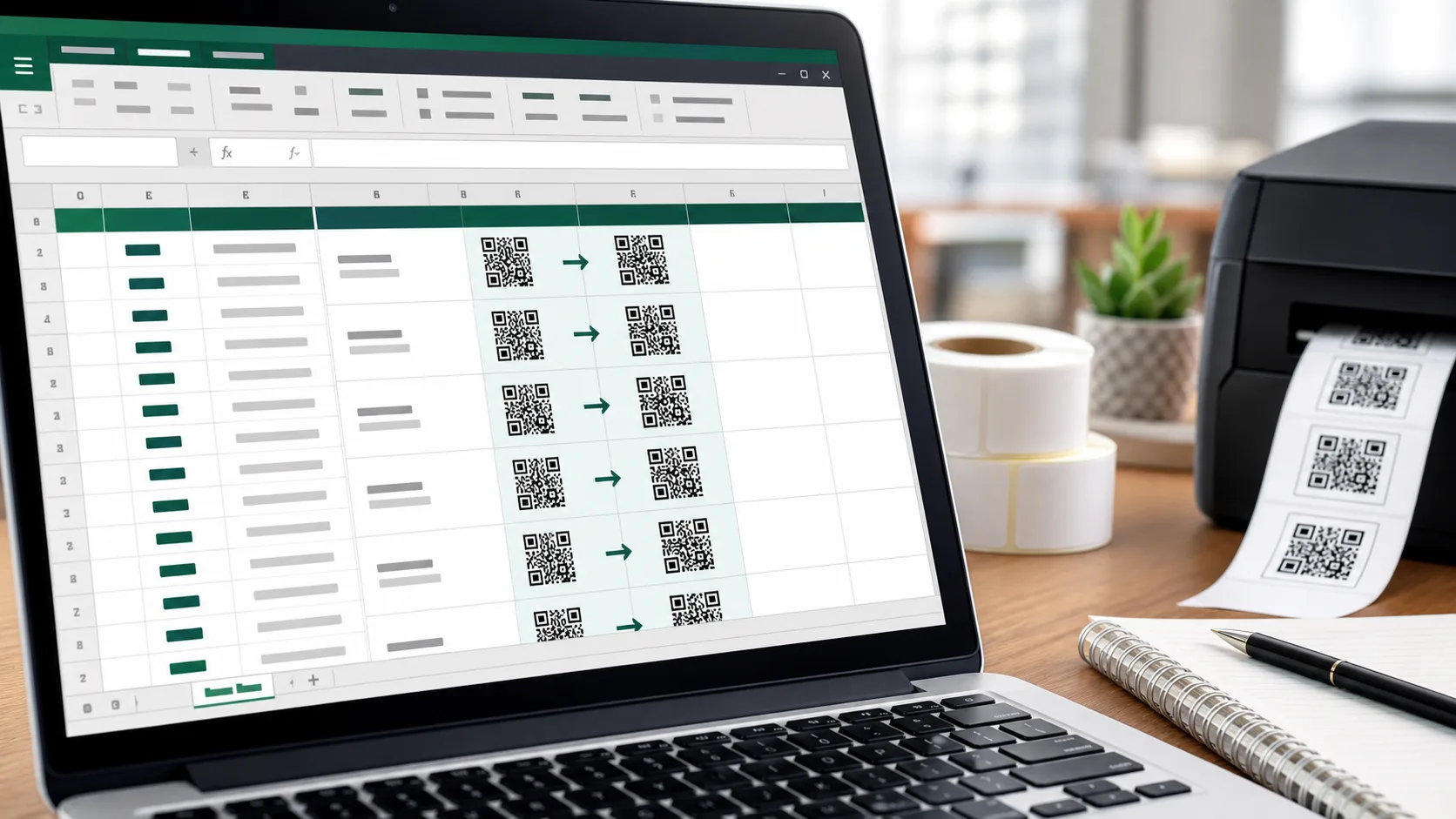
Generating QR codes straight from a spreadsheet is a common wish for anyone managing inventory lists, labels, or tickets. The bad news: Excel has no built-in QR code function, neither in older versions nor in Microsoft 365. The good news: a few tricks make it possible anyway — sometimes even automatically for entire columns. This article shows four proven methods to create a QR code in Excel.
At a glance
- Single code: online generator + insert as image
- Many codes automatically: the IMAGE function with a QR API (Microsoft 365)
- Your own solution, offline: a VBA macro
- No tech skills: an add-in from the Office Store
- Important: the API and add-in methods send data to third parties
First: Why Is There No Native QR Function?
Out of the box, Excel can calculate neither barcodes nor QR codes. A formula like =QRCODE() does not exist. Every working method therefore relies on an external mechanism: an online service, a macro, or an add-in. Which method fits depends on whether you need a single code or many codes — and whether your spreadsheet may go online.
Method 1: Online Generator and Insert as Image
For single QR codes, this is the fastest route, with no technical effort:
- Create the QR code with an online generator — such as our QR code generator.
- Download the image (ideally as PNG or SVG).
- In Excel, insert it via Insert → Pictures into the desired cell.
- Adjust the size and, if needed, anchor the image to the cell (right-click → Size and Properties → Move and size with cells).
Advantages: no macros, the file isn't dependent on the internet, full design control (e.g., with a logo). Drawback: it becomes tedious with many codes.
Method 2: The IMAGE Function With a QR API (Microsoft 365)
This is the modern pro trick for dynamic and bulk QR codes. Since Microsoft 365, the =IMAGE() function pulls an image from a web address straight into a cell. Combined with a QR code API that returns an image from a URL, you get a QR code that updates automatically whenever the cell content changes.
The basic pattern looks like this:
=IMAGE("https://<qr-api>/?data=" & A2 & "&size=150x150")If cell A2 contains, say, a URL or item number, the formula generates the matching QR code right in the cell. Drag the formula down and every row automatically gets its own code — ideal for inventory lists with hundreds of entries.
Here's how:
- Put the content to be encoded in one column (e.g., column A).
- Enter the
IMAGEformula in column B, referencing the relevant row. - Copy the formula across all rows.
- Increase the row height so the codes are clearly visible.
Important notes: this method only works with an internet connection, because Excel loads the image from the server each time. It also sends your data to the API provider — which is problematic from a privacy standpoint for sensitive content (such as personal data). For internal, non-critical data it is extremely handy. Choose a trustworthy service and mind its usage limits.
Method 3: Generate QR Codes With a VBA Macro
If you want a self-contained, reusable solution, use a VBA macro. It automates the process: the macro reads the cell contents, calls a QR library or API, and inserts the finished images.
The rough workflow:
- Open the VBA editor via Developer → Visual Basic.
- Create a new module and paste the macro code.
- The macro loops through the desired cells.
- For each cell, a QR code is generated and inserted at the right position.
Advantage: you can tailor the process exactly and work without the IMAGE function. Drawback: it requires VBA skills, and macros must be enabled (.xlsm format). In companies, macros are often blocked for security reasons.
Method 4: An Add-in From the Office Store
The Microsoft AppSource store (formerly Office Store) offers ready-made QR code add-ins. You install them via Insert → Get Add-ins, search for "QR Code," and add the tool you want. After that, you usually generate QR codes from a side panel without writing formulas or code.
Advantage: user-friendly, no programming. Drawback: many good add-ins are paid or limited, and here too you should check where your data is sent.
Which Method for Which Purpose?
| Need | Recommended method |
|---|---|
| A single code, with a logo | Method 1 (generator + image) |
| Many codes automatically, Microsoft 365 | Method 2 (IMAGE function) |
| Recurring, offline, technically savvy | Method 3 (VBA) |
| Convenience without tech | Method 4 (add-in) |
Static vs. Dynamic QR Codes in Excel
An often-overlooked point: the codes generated in Excel are usually static. The encoded content (e.g., a URL) is stored permanently and cannot be changed afterward without creating a new code. If you want to print a QR code and later change its destination — say, swap out a landing page — you need a dynamic QR code with redirection. That can't be stored sensibly in Excel; it's managed through a service instead. For labels with unchanging content, static codes are perfect.
Bulk Creation: Tips for Large Lists
If you need hundreds of QR codes at once — for storage locations or event tickets, for example — keep in mind:
- Unique content: each row should contain a unique value (e.g., a sequential number or URL).
- Consistent size: set row height and image size consistently.
- Print size: there is no universal minimum. For common smartphone use, 25 to 30 mm is often a practical starting point; see the guide to module size, quiet zone and resolution.
- Test before printing: scan a few sample codes at their real final size before producing a whole series.
By the way: classic barcodes can be embedded in spreadsheets in a similar way — more on that in our article Code 128 explained.
Frequently Asked Questions
Can Excel create QR codes on its own? No. There is no native QR function. You need a generator, the IMAGE function with an API, a VBA macro, or an add-in.
Does the IMAGE method also work offline? No. Excel loads the image from the server on each recalculation. Without internet, the cell stays empty.
Is it safe to encode sensitive data via a QR API? Only to a limited extent. With the API and add-in methods, the content is sent to third parties. For personal or confidential data this is not recommended — use Method 1 with locally generated images or an offline macro instead.
How do I get a separate QR code for each row? With the IMAGE formula and a cell reference (e.g., A2) that you copy downward. Each row then gets its own code automatically.
Conclusion
Even without a native function, you can reliably create QR codes in Excel. For single codes, the route via a QR code generator and inserting the image is the simplest and safest. If you want to automate entire lists and use Microsoft 365, the IMAGE function is the most convenient — but keep internet dependency and data privacy in mind. For sensitive data, local creation remains the best choice.