QR Code Not Scanning? Find the Cause and Fix It
Check the QR image, contrast, margin, logo and destination separately. A practical diagnostic sequence for screens, print and phones.
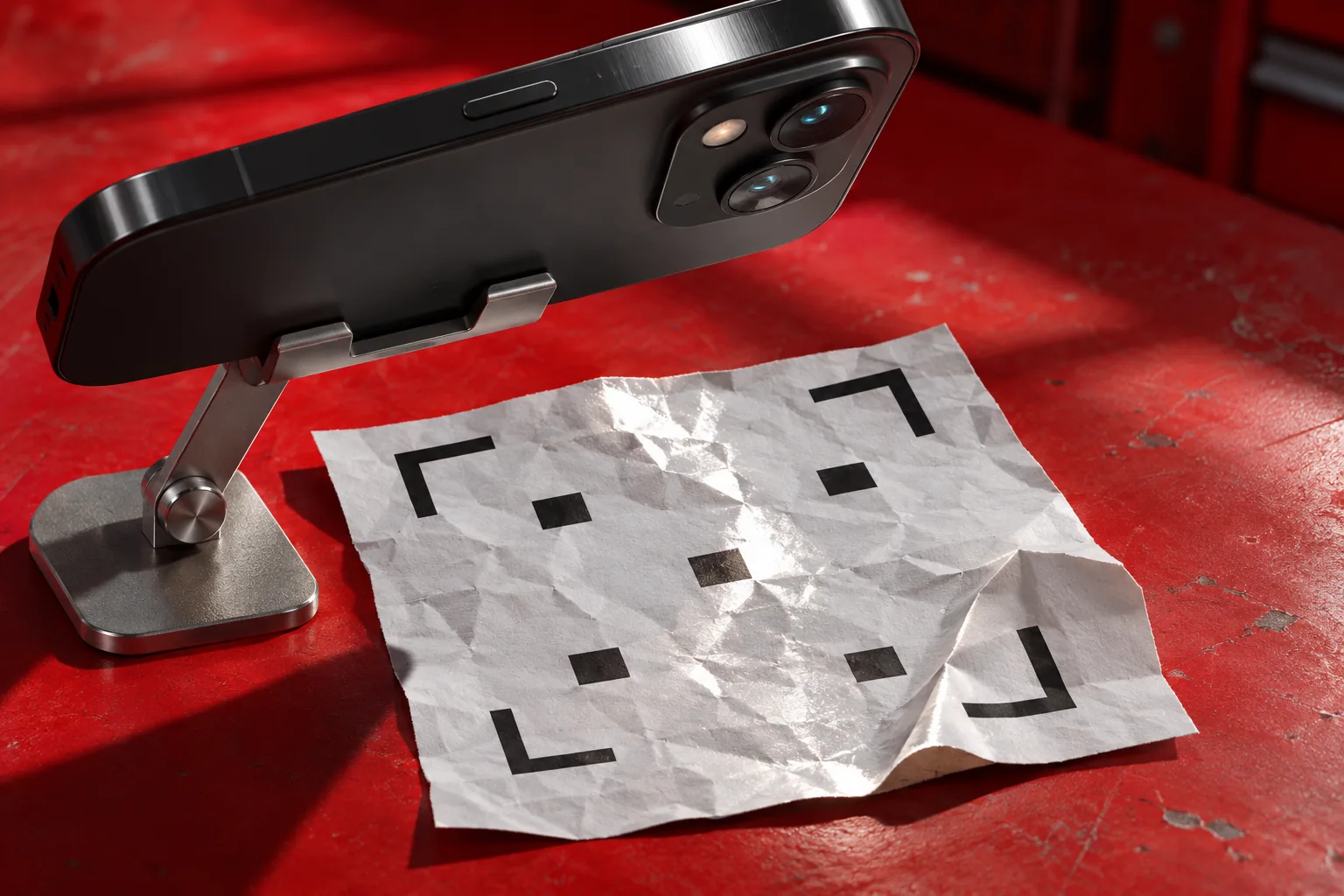
If the camera cannot recognize the code, start with the image. If it recognizes a link that will not open, check the content, connection and destination. Separating those failures prevents unnecessary redesigns.
Separate recognition from destination failures
Open the phone's regular camera and keep the complete code inside the frame. If a link preview appears, the QR code has already been decoded. A subsequent missing page, login prompt or expired download concerns the destination behind the code. Changing the colors will not repair that address. Copy the recognized URL and try opening it directly in the browser before rebuilding the artwork.
If nothing is recognized, try the same image in the file scanner and on a second phone. When the image works but the printed copy fails, investigate the printing process and surface. When only one phone fails, check its camera settings, focus and operating-system updates. Change one variable at a time so that a successful attempt tells you which adjustment helped.
Create a plain reference version
Generate the same content using black square modules on a white background. Remove the logo, switch off transparency and avoid gradients. This version provides a controlled comparison. If it scans consistently, the failure probably comes from a design option added later. Restore the colors, shapes and logo separately, checking each result. Keep the working reference rather than overwriting it with every experiment.
- Keep the content identical: a shorter test URL may produce a less dense code.
- Test the downloaded file, not only the generator's preview.
- Record the successful settings so the result can be reproduced.
Restore the margin and contrast
Leave a clear, even area around the symbol. DENSO WAVE specifies a quiet zone four modules wide on every side of a normal QR code. A module is one of the small squares in its grid. Do not crop this border when positioning the image in a page layout. A decorative frame, photograph or nearby caption should stay outside that clear area.
For diagnosis, use dark modules against a light, solid background. A transparent export may lose its contrast when placed over the final surface. Inspect the finished design: a white artboard in a graphics editor does not establish that the same file will work on dark packaging. Reflections, shadows and glossy coatings can also change the contrast seen by a camera.
Test the final size and export
There is no single minimum size that guarantees recognition in every setting. Grid density, print quality, viewing distance and camera performance all matter. Make a substantially larger comparison copy and scan from the intended distance. A wall poster needs a different practical test from a business card. On a screen, moderate brightness and a position without reflections can make the comparison more useful.
Prefer SVG for print layouts that need to scale. With PNG, make sure the individual modules remain crisp at the final placement size. Avoid screenshots, repeated resizing and heavy additional JPEG compression. Sending the image through a messaging service may change its quality too. Test both the original export and the exact publication or delivery process that other people will use.
Reduce the logo before raising correction levels
Shrink a central logo or remove it temporarily. Keep the large corner finder patterns unobstructed. Higher error correction can recover damaged information, but it can also make the grid denser. Its recovery percentages refer to codewords, not an unrestricted percentage of the visible surface that can safely be covered. Level H is therefore a design aid, not proof that an oversized logo will work.
Check the payload and the published result
When the code is recognized but the expected action fails, inspect its actual contents. A website address should contain the appropriate https scheme. A WiFi code needs the current network name, security setting and password. Contact and calendar payloads may produce different actions in different scanner apps. Use the file scanner to inspect the raw value before assuming that the symbol itself is broken.
Finally, record the working file, final size, surface and destination. Scan a sample after the final print run and check it again when the linked website changes. If the code opens the wrong action, correct the content and export a replacement. The data stored in a printed static grid cannot be rewritten remotely; a destination-side fix only helps when you still control the encoded address.
Common questions
Why does the QR code work on only one phone?
Cameras, focus behavior and scanner apps differ. Compare the original image on another device and in the file scanner, then check the print, contrast and settings on the affected phone.
Does higher error correction always fix a code?
No. It can recover damaged information but may increase grid density. A missing margin, incorrect destination or poor print needs a different correction.
The code is recognized, but the website does not load. What should I check?
Open the recognized URL directly and check the connection and destination. Decoding the symbol and loading a website are separate operations.
Sources and further reading
Primary sources, reviewed on November 11, 2026.